1. GSTR-1 কী এবং কাকে File করতে হবে?
GSTR-1 হলো একটি monthly (বা quarterly) outward supply return যেখানে আপনি সরকারের কাছে সমস্ত sales declare করেন। আপনার filed data আপনার buyers-এর GSTR-2B-তে auto-populate হয় তাদের Input Tax Credit claims-এর জন্য।
| Taxpayer Type | Filing Frequency | Due Date |
|---|---|---|
| Regular Taxpayer (Monthly) | প্রতি মাসে | 11th of next month |
| QRMP Scheme (Quarterly) | প্রতি quarter | 13th after quarter ends |
| Nil Return (zero sales) | Monthly — তবুও বাধ্যতামূলক | 11th of next month |
| New Registration | Registration month থেকে | 11th of next month |
2. Due Dates — Month-wise (FY 2025–26)
কোনো মাসের GSTR-1 পরের মাসের ১১ তারিখের মধ্যে file করুন। উদাহরণ — January 2026-এর sales, ১১ February 2026-এর মধ্যে।
| Return Period | Due Date (Monthly) | Status |
|---|---|---|
| April 2025 | 11 May 2025 | Filed |
| May 2025 | 11 June 2025 | Filed |
| June 2025 | 11 July 2025 | Filed |
| July 2025 | 11 August 2025 | Filed |
| August 2025 | 11 September 2025 | Filed |
| September 2025 | 11 October 2025 | Filed |
| October 2025 | 11 November 2025 | Filed |
| November 2025 | 11 December 2025 | Filed |
| December 2025 | 11 January 2026 | Filed |
| January 2026 | 11 February 2026 | Filed |
| February 2026 | 11 March 2026 | Filed |
| March 2026 | 11 April 2026 | Filed |
| April 2026 | 11 May 2026 | Due Soon |
| May 2026 | 11 June 2026 | Upcoming |
QRMP Scheme — Quarterly Due Dates (FY 2025-26)
| Quarter | Period | Due Date |
|---|---|---|
| Q1 | April – June 2025 | 13 July 2025 |
| Q2 | July – September 2025 | 13 October 2025 |
| Q3 | October – December 2025 | 13 January 2026 |
| Q4 | January – March 2026 | 13 April 2026 |
3. সঠিক Financial Year কীভাবে Select করবেন
GST portal-এ ভুল Financial Year (FY) select করা সবচেয়ে সাধারণ ভুলগুলোর একটি — এতে return ভুল period-এ file হয়ে যায় এবং সংশোধন করা অত্যন্ত কঠিন।
ভারতের Financial Year: April থেকে March
| Sales Month | Select Financial Year | Example |
|---|---|---|
| April 2024 – March 2025 | 2024-25 | Sales in May 2024 → FY 2024-25 |
| April 2025 – March 2026 | 2025-26 | Sales in January 2026 → FY 2025-26 |
| April 2026 – March 2027 | 2026-27 | Sales in April 2026 → FY 2026-27 |
4. Step-by-Step Filing Process
Login করুন, navigate করুন, data enter করুন, preview করুন এবং file করুন — প্রতিটি screen-এ কী করতে হবে।
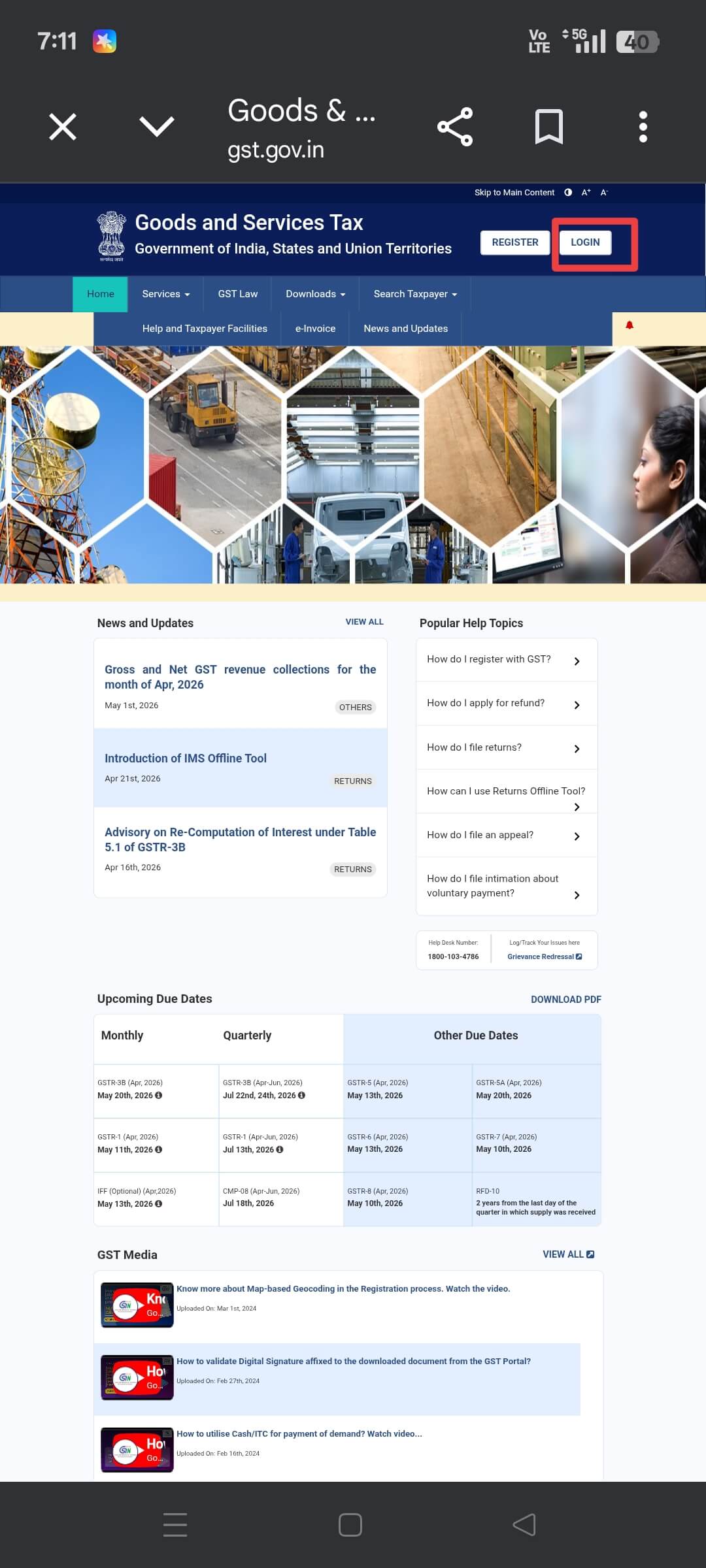
Browser-এ gst.gov.in খুলুন। উপরে ডানে "Login" click করুন, Username, Password এবং Captcha enter করুন, তারপর Login click করুন।
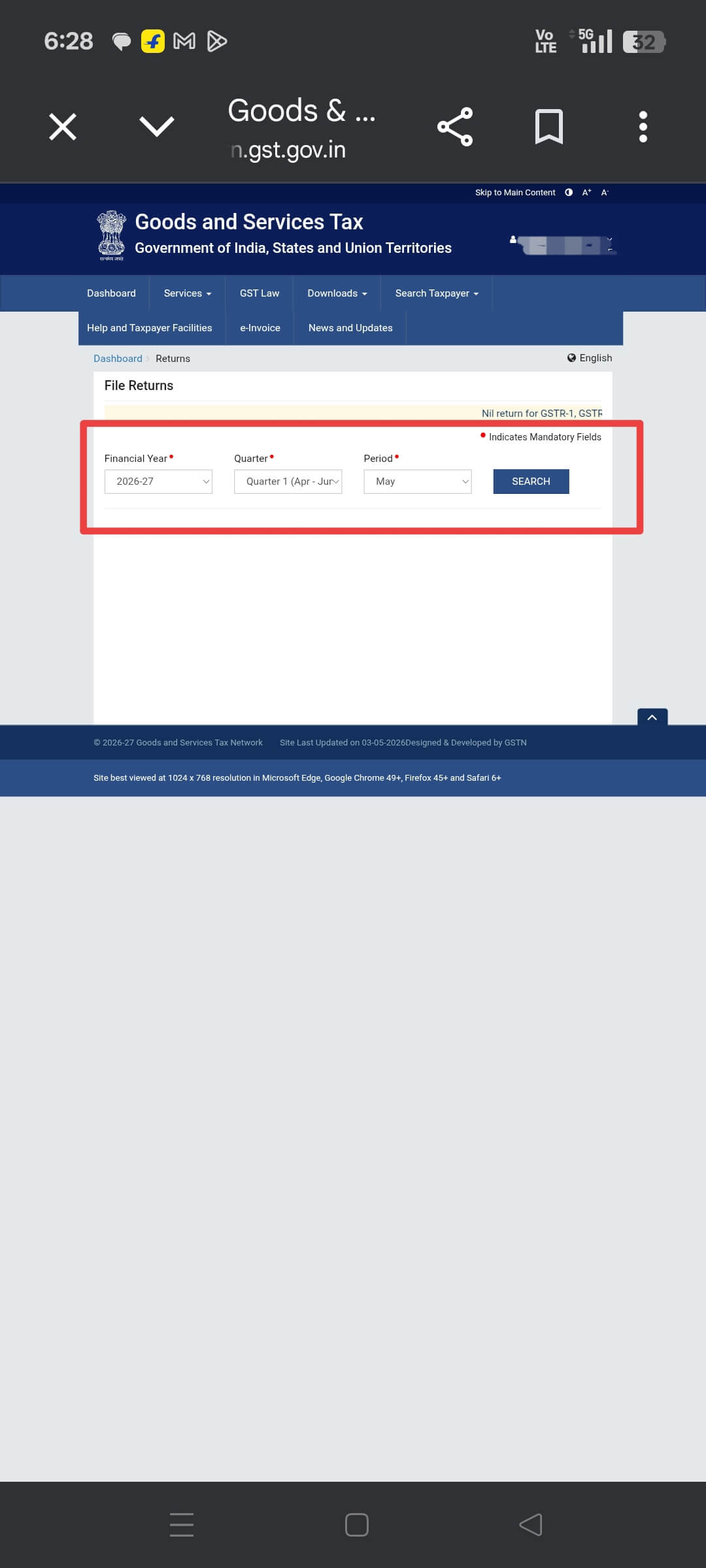
Login-এর পরে Services → Returns → Returns Dashboard-এ যান। Dropdown থেকে Financial Year এবং Return Period (month) select করুন।
| Filing For | Select FY | Select Period |
|---|---|---|
| Sales in January 2026 | 2025-26 | January |
| Sales in April 2025 | 2025-26 | April |
| Sales in March 2025 | 2024-25 | March |
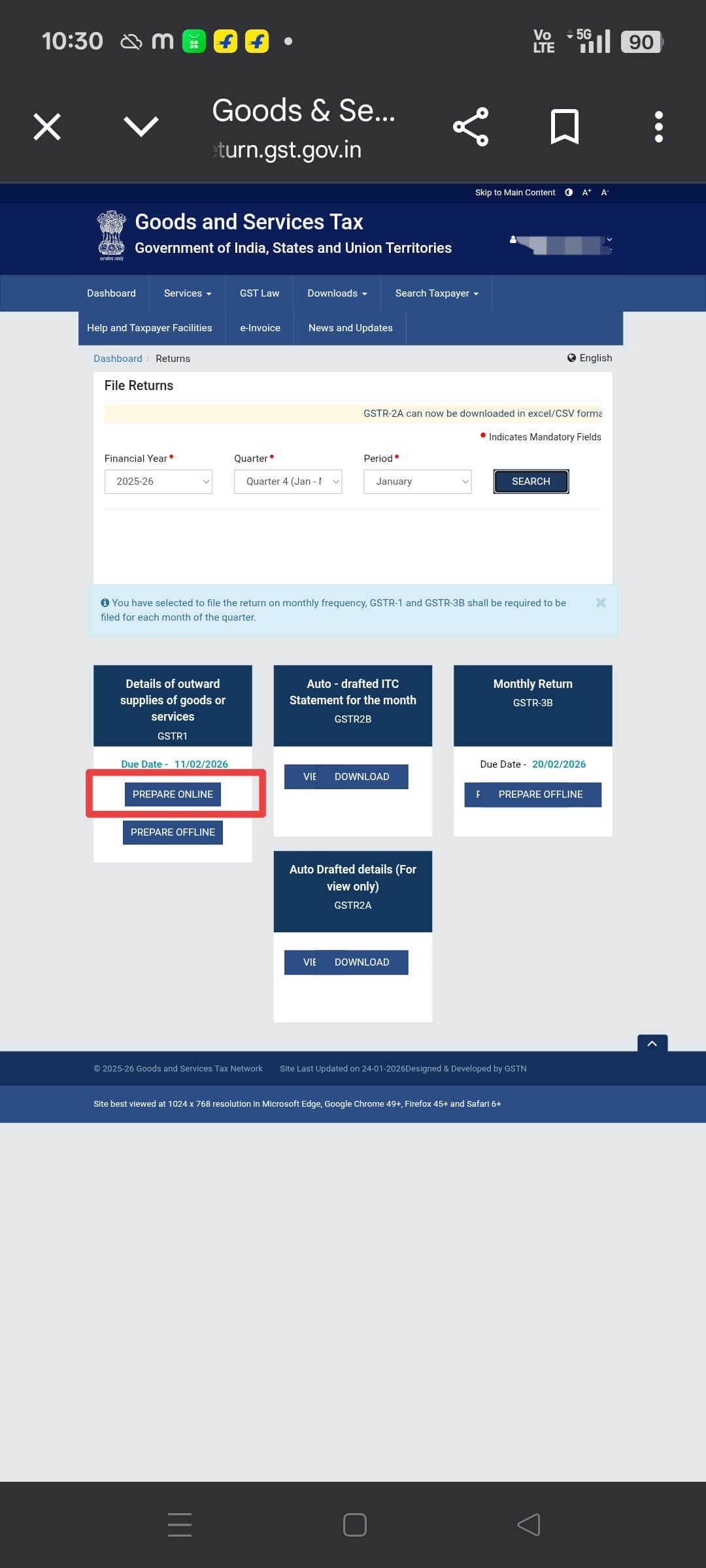
Dashboard-এ GSTR-1 tile দেখাবে। সেটায় click করুন, তারপর "Prepare Online" select করুন — portal-এ directly data enter করার জন্য।
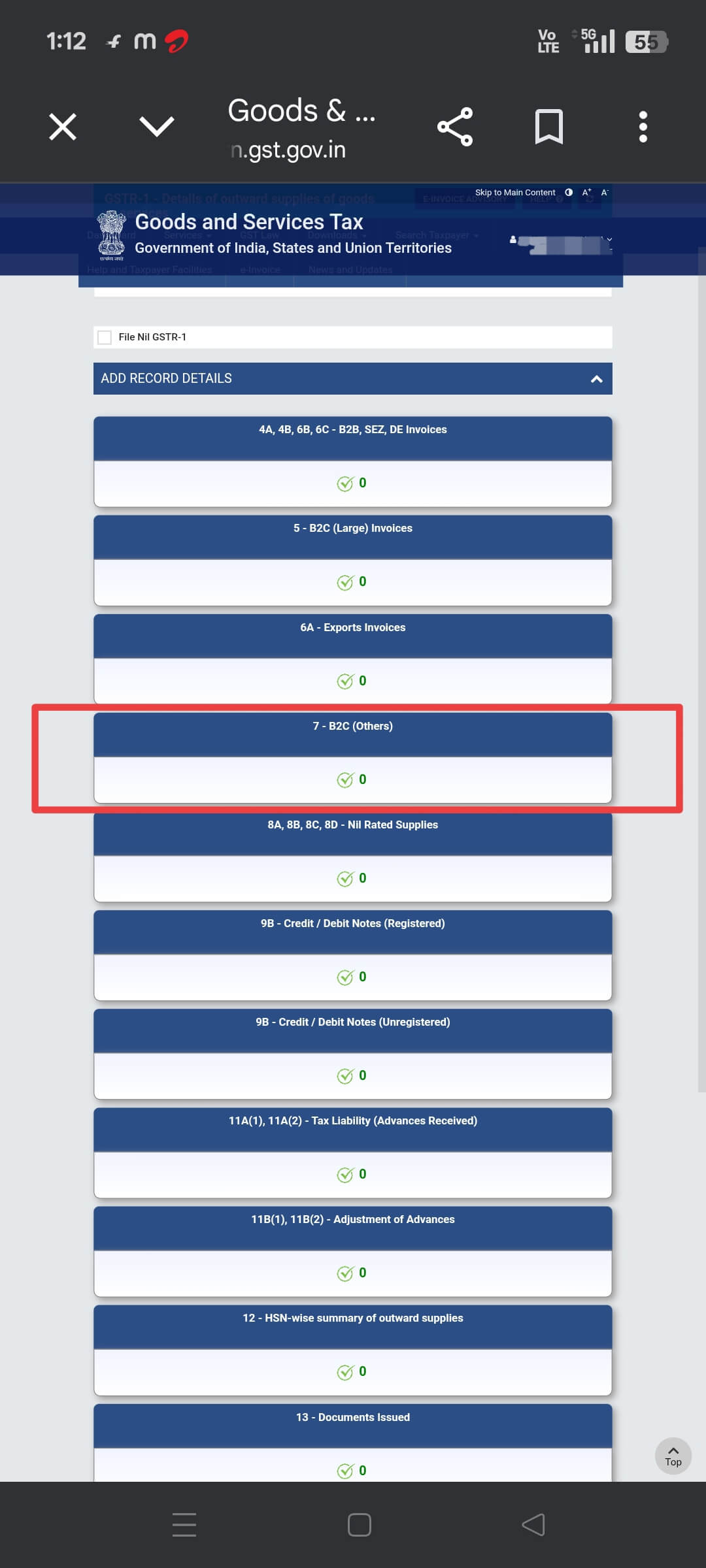
Online platforms-এ individual consumers-দের কাছে বিক্রয় Table 7 — B2C Others-এ যায় (invoice value ₹2.5 lakh-এর নিচে)।
| Field | What to Enter | Example |
|---|---|---|
| Type of Supply | Intra-state (CGST+SGST) or Inter-state (IGST) | Seller in Assam, buyer in Delhi → Inter-state (IGST) |
| Place of Supply | Buyer's state | Delhi, Maharashtra, West Bengal |
| Rate of Tax | Product's applicable GST rate | 5%, 12%, 18%, 28% |
| Taxable Value | Sale value excluding GST | ₹10,000 (MRP ₹10,500 at 5% GST) |
কোনো GST-registered business-কে goods বিক্রি করলে সেগুলো Table 4A (B2B supplies)-এ যাবে। Buyer-এর GSTIN, invoice number, date, value, HSN code এবং tax rate enter করুন।
If you sell any nil-rated or exempt products (e.g. unbranded food items, fresh produce), declare those in Table 8 — even though no tax applies.
| Supply Type | Example Products | Table |
|---|---|---|
| Nil Rated (0% GST) | Unbranded flour, rice, salt | Table 8 |
| Exempted | Fresh fruits, vegetables | Table 8 |
| Non-GST Supply | Alcohol, petroleum | Table 8 |
HSN (Harmonized System of Nomenclature) হলো একটি international product code। Table 12-এ সমস্ত sales HSN code অনুযায়ী group করুন এবং প্রতিটির total enter করুন।
| Annual Turnover | Required HSN Digits | Example |
|---|---|---|
| Below ₹5 Crore | 4-digit HSN | 6109 (T-shirts) |
| Above ₹5 Crore | 6-digit HSN | 610910 (T-shirts, cotton) |
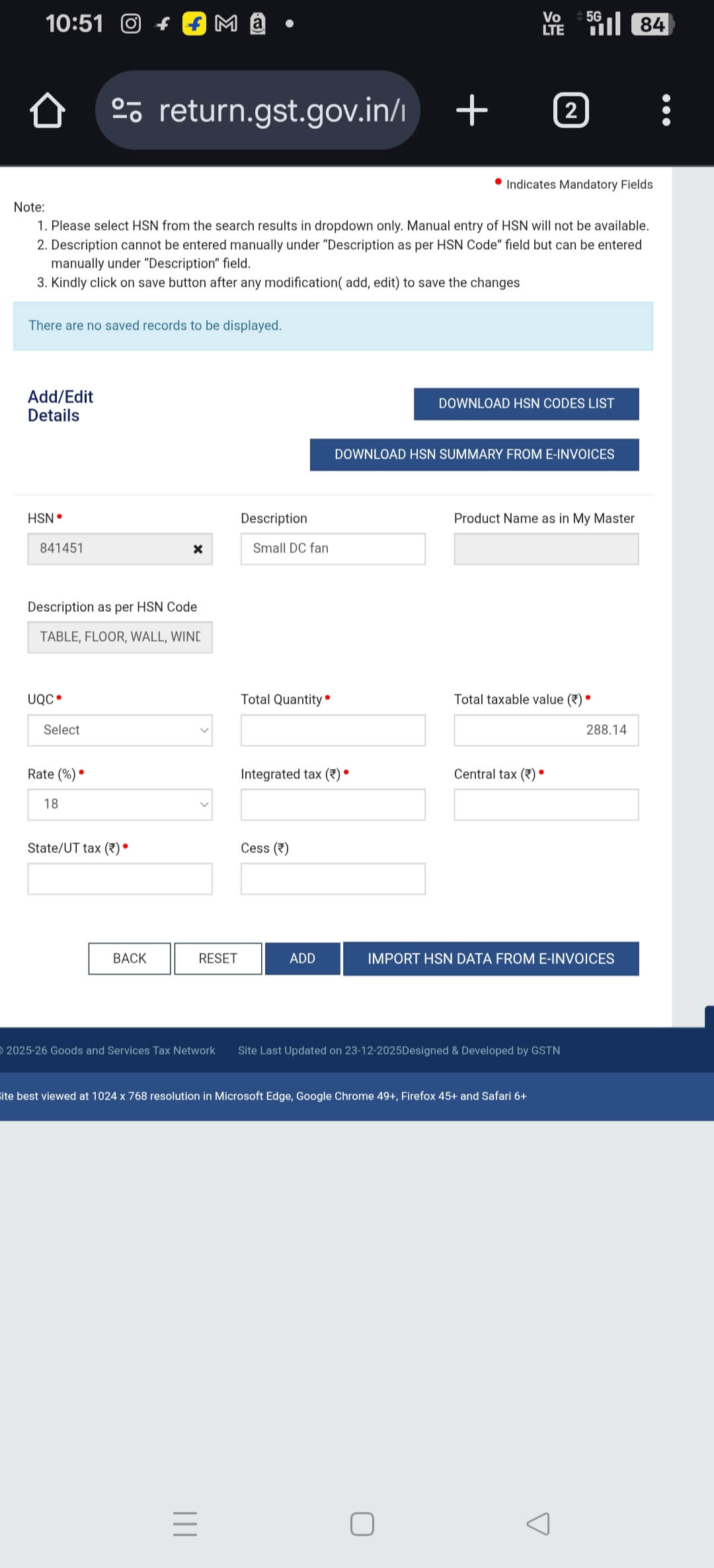
সব data enter করার পরে "Generate Summary" click করুন। Portal-এর process করতে একটু সময় লাগে — page refresh করুন এবং প্রায় ১ মিনিট অপেক্ষা করুন — তারপর পরের button activate হবে। "Preview" click করে সব entries-এর PDF download করুন।
Verify in the preview PDF:
- Is the total taxable value correct?
- Are CGST + SGST / IGST amounts right?
- Have all states and HSN codes been covered?
- Have RTO returns been deducted from gross sales?
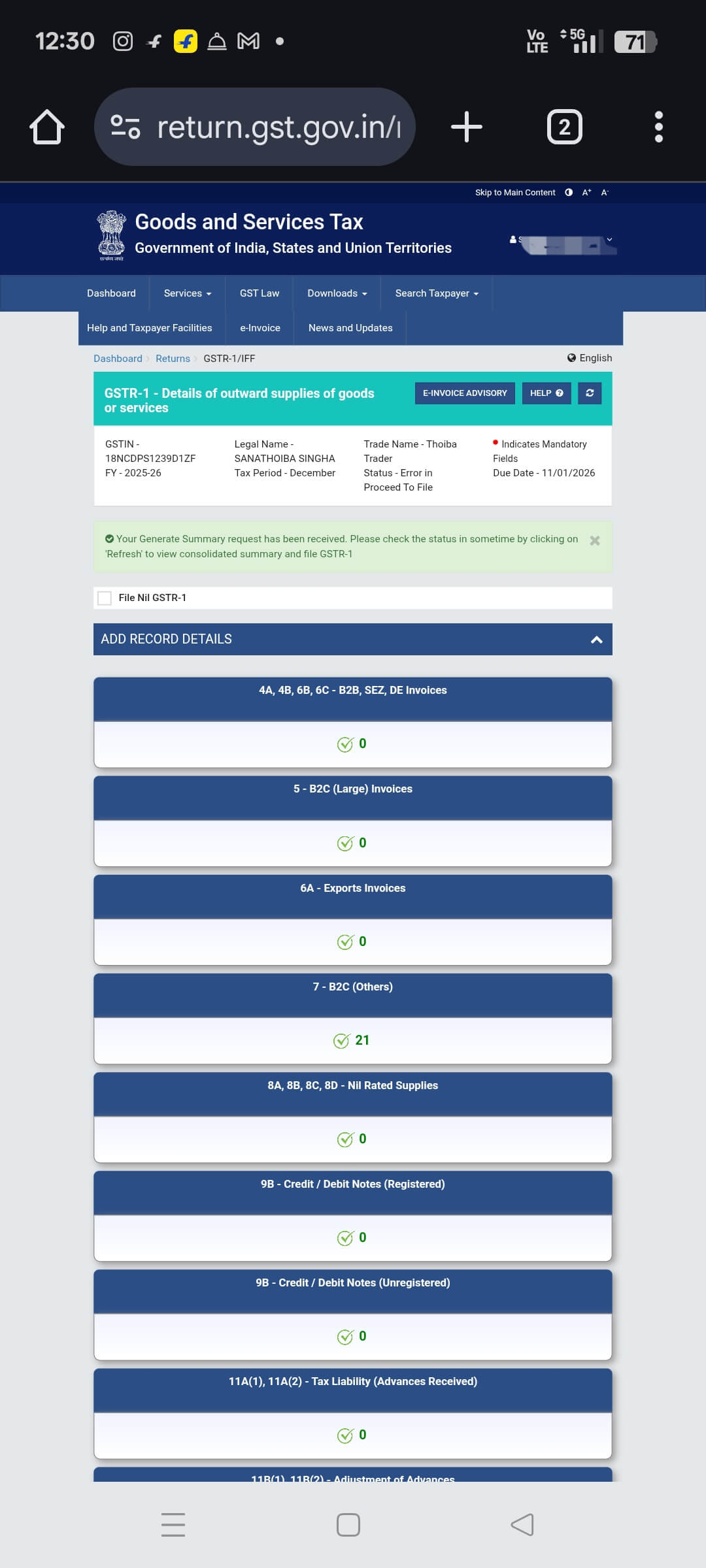
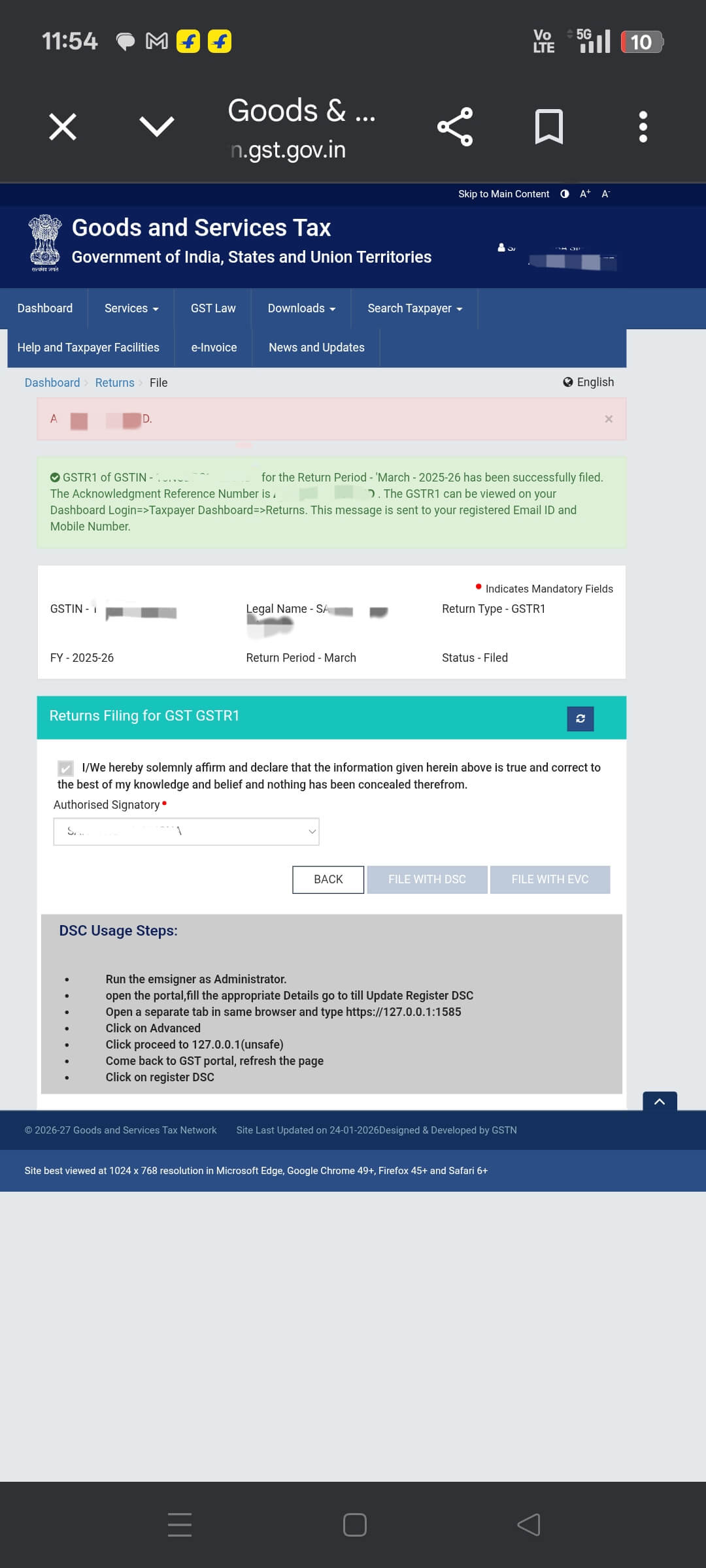
Preview সঠিক মনে হলে "Submit" click করুন — এতে data lock হয়ে যায়। তারপর "File Return" click করুন এবং verification method বেছে নিন:
- EVC (Electronic Verification Code): An OTP is sent to your Aadhaar-linked mobile. Enter it to file. This is the easiest method for most sellers.
- DSC (Digital Signature Certificate): Use your USB DSC token if available.
5. Table 13 — Documents Issued
Table 13 is one of the most commonly skipped yet important sections of GSTR-1. It requires a summary of all documents issued during the return period — tax invoices, bills of supply, credit notes, and debit notes.
| Document Type | When Issued | Example |
|---|---|---|
| Tax Invoice (B2B) | Selling to a GST-registered business | Wholesale to a registered shop |
| Tax Invoice (B2C) | Selling taxable goods to a consumer | Meesho / Amazon / Flipkart order |
| Bill of Supply | Nil-rated or exempt goods | Unbranded atta, fresh vegetables |
| Credit Note | Returns or cancellations | RTO return → credit note issued |
| Debit Note | Additional charge applies | Short-billed invoice revised upward |
How to Fill Table 13
| Field | What to Enter |
|---|---|
| Sr. No. (From) | First invoice number of the period |
| Sr. No. (To) | Last invoice number of the period |
| Total Number | Auto-calculated by portal |
| Cancelled | Number cancelled — enter 0 if none |
| Net Issued | Total − Cancelled (auto-calculated) |
6. Phone থেকে File করছেন? এটাই আসলে কাজ করে
GST portal desktop-এর জন্য তৈরি — কিন্তু সঠিক settings-এ phone-এও ভালোভাবে কাজ করে।
সবার কাছে laptop নেই। শুধু phone থাকলে ঘাবড়াবেন না — আমি নিজেই phone থেকে file করেছি। কিন্তু একটি setting আছে যা কোনোভাবেই skip করা যাবে না।
প্রথমবার phone-এর normal browser mode-এ file করার চেষ্টা করে Table 7-এ state-wise data edit-ই করতে পারিনি। Edit option খুলছিলই না। ২০ মিনিট লেগেছিল বুঝতে কোথায় ভুল হচ্ছে। দেখা গেল ভুল আমার ছিল না — portal-এর mobile view-ই সমস্যা ছিল।
সমাধান ছিল সহজ: browser settings-এ গেলাম, "Desktop Site" on করলাম — এবং portal একদম laptop-এর মতো কাজ করতে শুরু করল। Mobile-এ থাকলে এটাই প্রথম কাজ — login-এর আগেও।
📱 Desktop Mode কীভাবে Enable করবেন
- Chrome (Android): Three-dot menu (⋮) tap করুন → "Desktop site" check করুন
- Safari (iPhone): Address bar-এ "AA" icon tap করুন → "Request Desktop Website"
- Samsung Browser: Three-line menu → Settings → "Desktop mode" tap করুন
আমার Pen-Paper Method — ছোট Screen-এ ভুলমুক্ত Filing
Phone-এ tabs switch করতে গেলে ভুল হয়। ভুল number copy, কোনো state miss, একই entry দুবার। এটাই সেই system যা আমি use করি এবং যা কখনো fail করেনি:
GST portal খোলার আগে, আমি notebook নিয়ে বসি এবং যত number enter করতে হবে সব লিখি — state-wise sales, taxable values, tax amounts, invoice ranges। সব কিছু। কাগজে।
তারপর, portal-এ যত entry পূরণ করি, notebook-এ পাশে tick দিই। এভাবে, হঠাৎ tab বন্ধ হলে বা মাঝে phone বেজে উঠলেও — ঠিক কোথায় ছেড়েছিলাম জানি। কোনো entry দুবার যায় না, কোনো state miss হয় না।
এটা পুরনো পদ্ধতি মনে হতে পারে, কিন্তু single-screen phone-এ এই method apps-এর মধ্যে switch করার চেয়ে দ্রুত এবং নিরাপদ। একটি ₹১০-এর notebook আমাকে ₹১০,০০০-এর penalty থেকে বাঁচিয়েছে।
7. Pre-Filing Checklist — "File" দেওয়ার আগে এটা করুন
GSTR-1-এ Submit click করলে data lock হয়ে যায়। সংশোধন শুধু পরের মাসের return-এ করা যায়। তাই এই step-টা গুরুত্বপূর্ণ।
✅ File করার আগে Final Checklist
8. Late Fee এবং Interest
Due date miss হয়েছে? সরকার এটা charge করে:
| Taxpayer Type | Late Fee Per Day | Maximum Cap | Interest |
|---|---|---|---|
| Normal Taxpayer (Sales occurred) | ₹50/day (₹25 CGST + ₹25 SGST) | ₹10,000 | 18% p.a. |
| Nil Return (Zero sales) | ₹20/day (₹10 CGST + ₹10 SGST) | ₹500 | — |
| Small Taxpayer (Turnover <₹1.5 Cr) | ₹50/day | ₹2,000 (relaxed) | 18% p.a. |
9. সচরাচর জিজ্ঞাসিত প্রশ্ন
Monthly filers-দের জন্য due date হল পরের মাসের ১১ তারিখ। January 2026-এর GSTR-1 → ১১ February 2026-এর মধ্যে। QRMP (quarterly) filers-দের জন্য quarter শেষ হওয়ার পর ১৩ তারিখ।
না। GST portal marketplace reports সরাসরি accept করে না। Taxable values বের করতে হবে, state-wise ও rate-wise split করতে হবে এবং manually enter করতে হবে — অথবা আমাদের GSTR-1 Calculator ব্যবহার করুন যা এটি automatically করে।
হ্যাঁ। Zero-sales মাসেও Nil GSTR-1 ফাইল করতে হবে। Portal-এ "File Nil Return" select করুন — ২ মিনিটের কম সময় লাগে। Skip করলে ₹২০ প্রতিদিন late fee লাগবে।
Gross sales থেকে returned orders (RTOs) বিয়োগ করুন এবং Table 7 (B2C)-তে শুধুমাত্র net sales report করুন। RTO বিয়োগ না করে gross sales ফাইল করলে অতিরিক্ত tax দিতে হয়।
হ্যাঁ — তবে browser-এ Desktop Mode ব্যবহার করতে হবে। Normal mobile view portal-এর editing functionality নষ্ট করে দেয়। Chrome খুলুন, three-dot menu tap করুন এবং login করার আগে "Desktop site" check করুন।
বার্ষিক turnover ₹৫ crore-এর কম taxpayers-রা QRMP (Quarterly Return Monthly Payment) scheme নিতে পারবেন — monthly-র বদলে quarterly GSTR-1 ফাইল করুন। তবে Form PMT-06-এর মাধ্যমে monthly tax দিতে হবে।
ফাইল করার পর GSTR-1 revise করা যায় না। ভুলটি পরের মাসের GSTR-1-এ Amendment Tables ব্যবহার করে সংশোধন করুন — Table 9A (B2B), 9B (credit/debit notes), 9C (B2C)।
The late fee auto-reflects in your next GSTR-3B under the "Late Fee" section. Pay from your Electronic Cash Ledger on the portal. It must be cleared before filing the pending GSTR-1.