1. When Is the Report Available?
Don't waste time logging in on the 1st — the report won't be there yet.
From my own experience as a Meesho seller, the report is typically not available on the 1st of the month. It usually gets updated on the portal somewhere between the 6th and 8th of the following month.
If you try to download too early, you'll either get an empty file or incomplete data — which creates bigger problems when you're trying to reconcile your returns.
If you try to download your report around the 6th or 7th of the month and see an "Empty Report" or "Data Not Found" error, don't worry. This usually happens when Meesho's servers are still processing the data.
Based on my experience, if you get this error in the evening, simply wait until the next morning. You will eventually receive an official email from Meesho saying your report is ready. Once that email arrives, you can download the report without any issues. Don't waste time retrying before the email arrives!
2. Why You Must NOT Use the Meesho App
This is the most common mistake Meesho sellers make.
The Meesho Supplier App does allow you to tap "Download" and download the GST report — but the file you get will almost always be corrupt. It won't open in Excel, and if it does open, the data will be garbled or unreadable.
This is a known issue. The app downloads the file in a way that doesn't preserve the Excel format correctly on Android. Many sellers waste 20–30 minutes troubleshooting a file that was simply downloaded the wrong way.
- Do not download the GST report from the Meesho Supplier App. The file will be corrupt.
- Do not try to repair the corrupt file using Excel's Open and Repair — it won't help.
- Do not email the corrupt file to your CA — they won't be able to use it either.
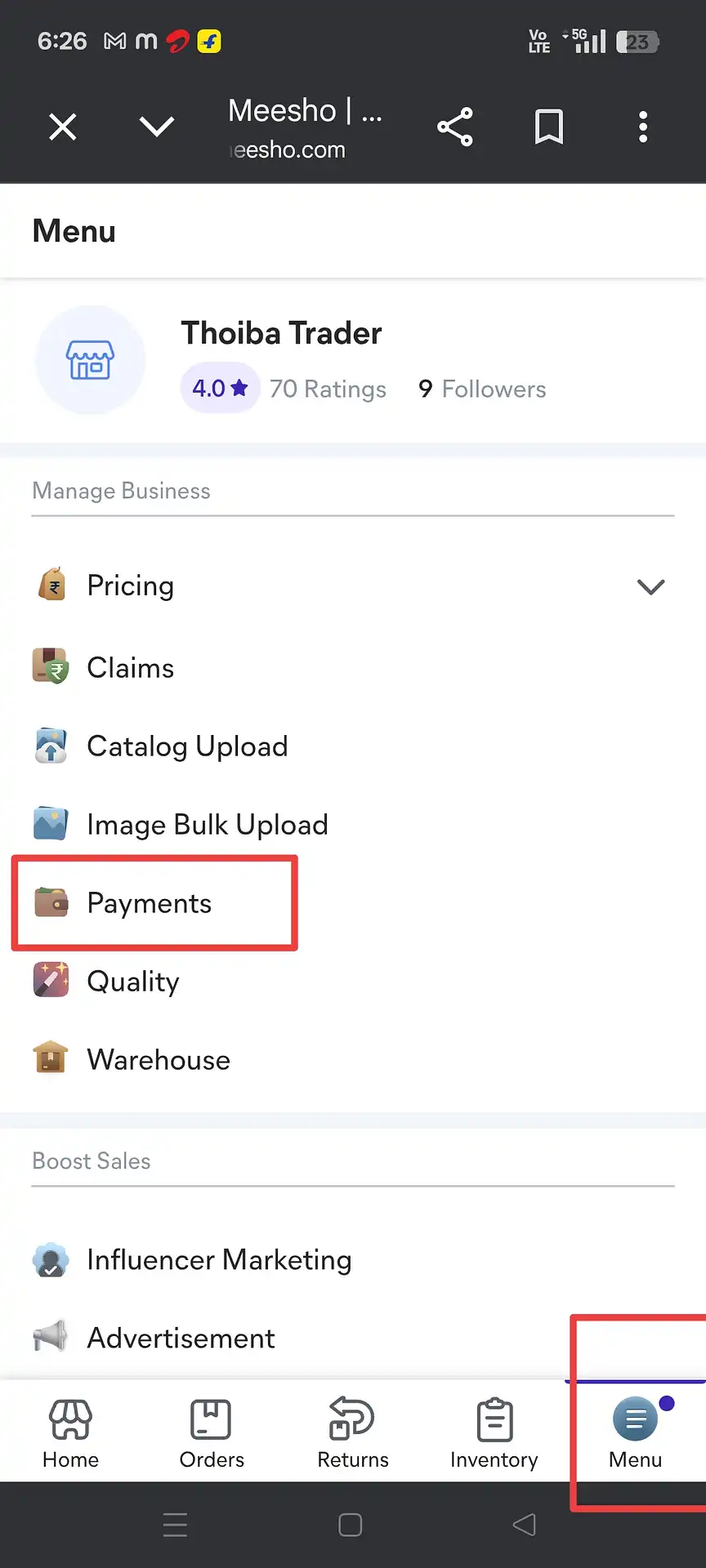
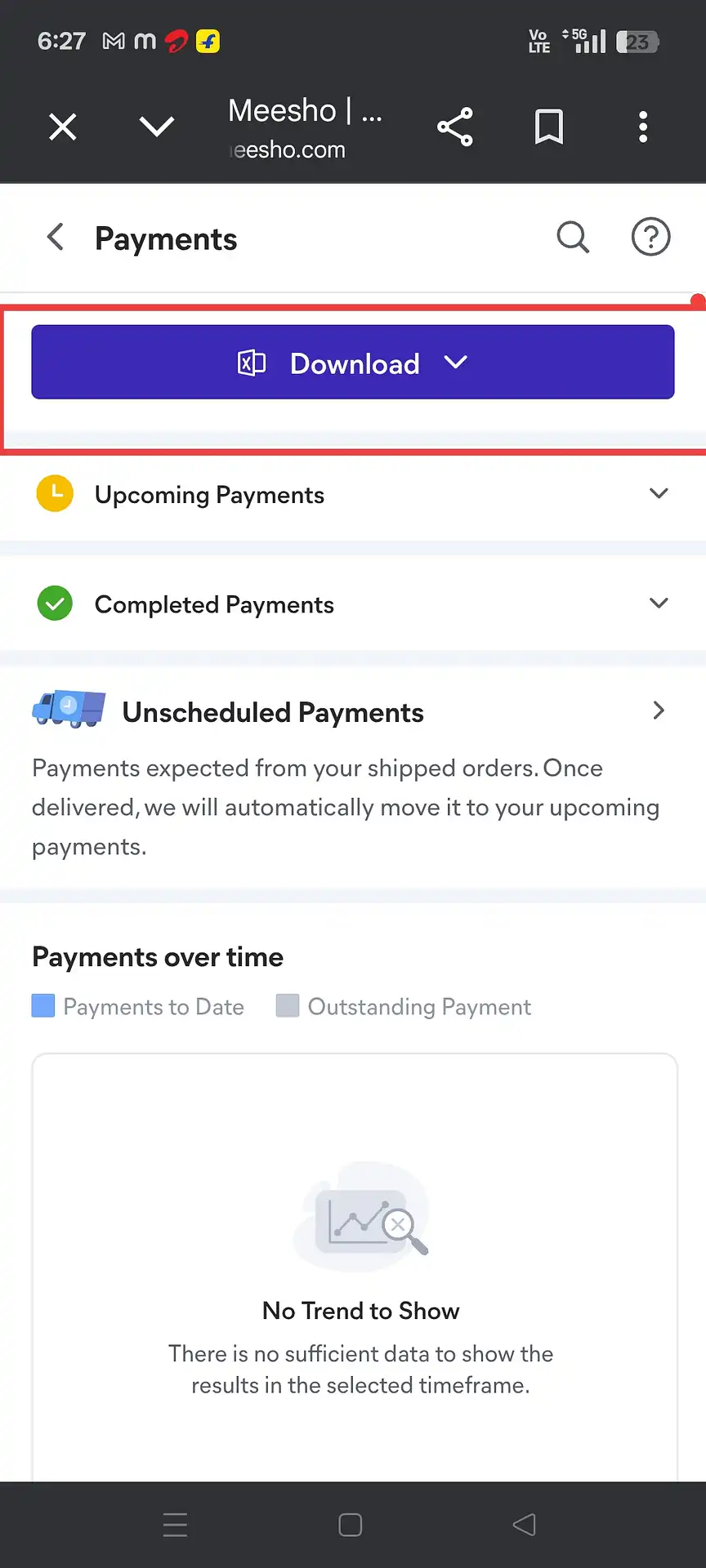
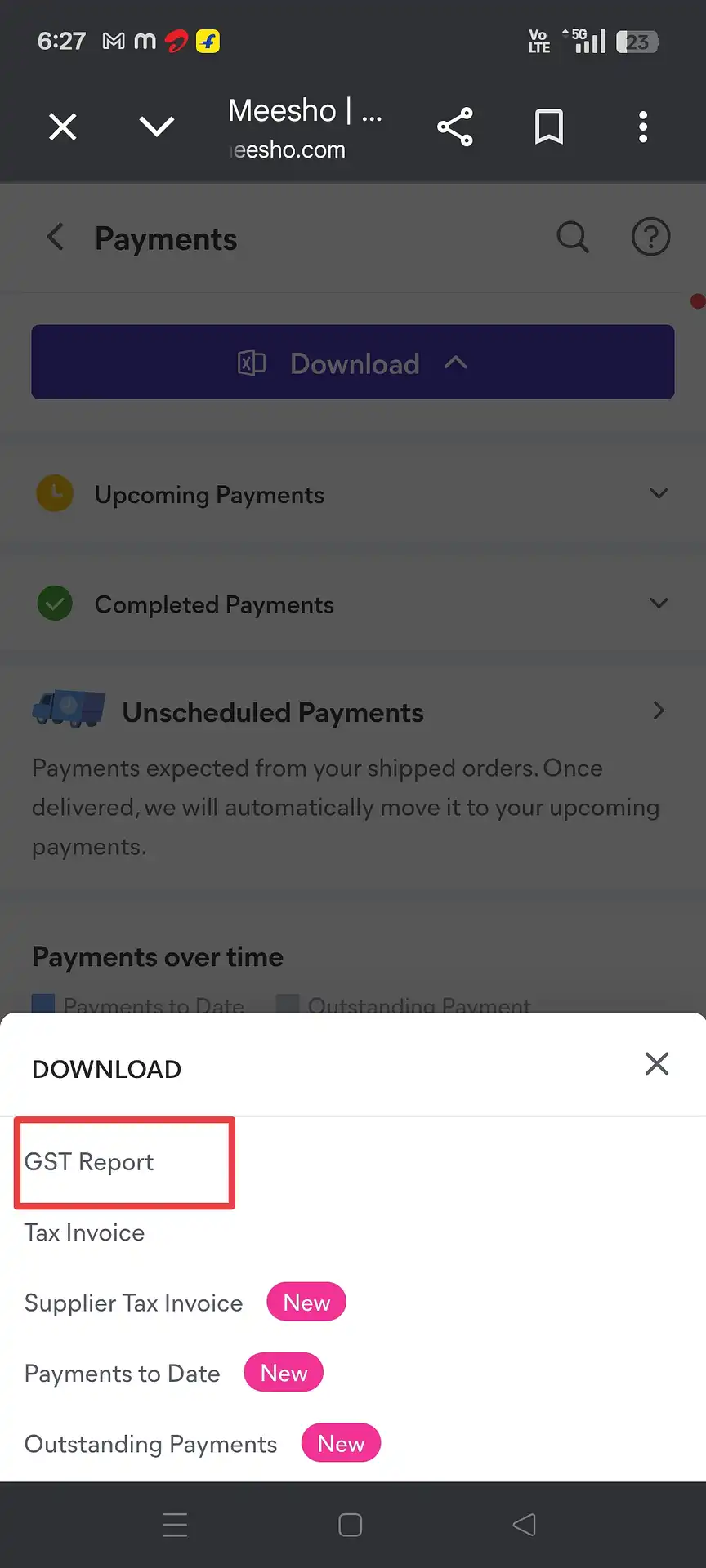
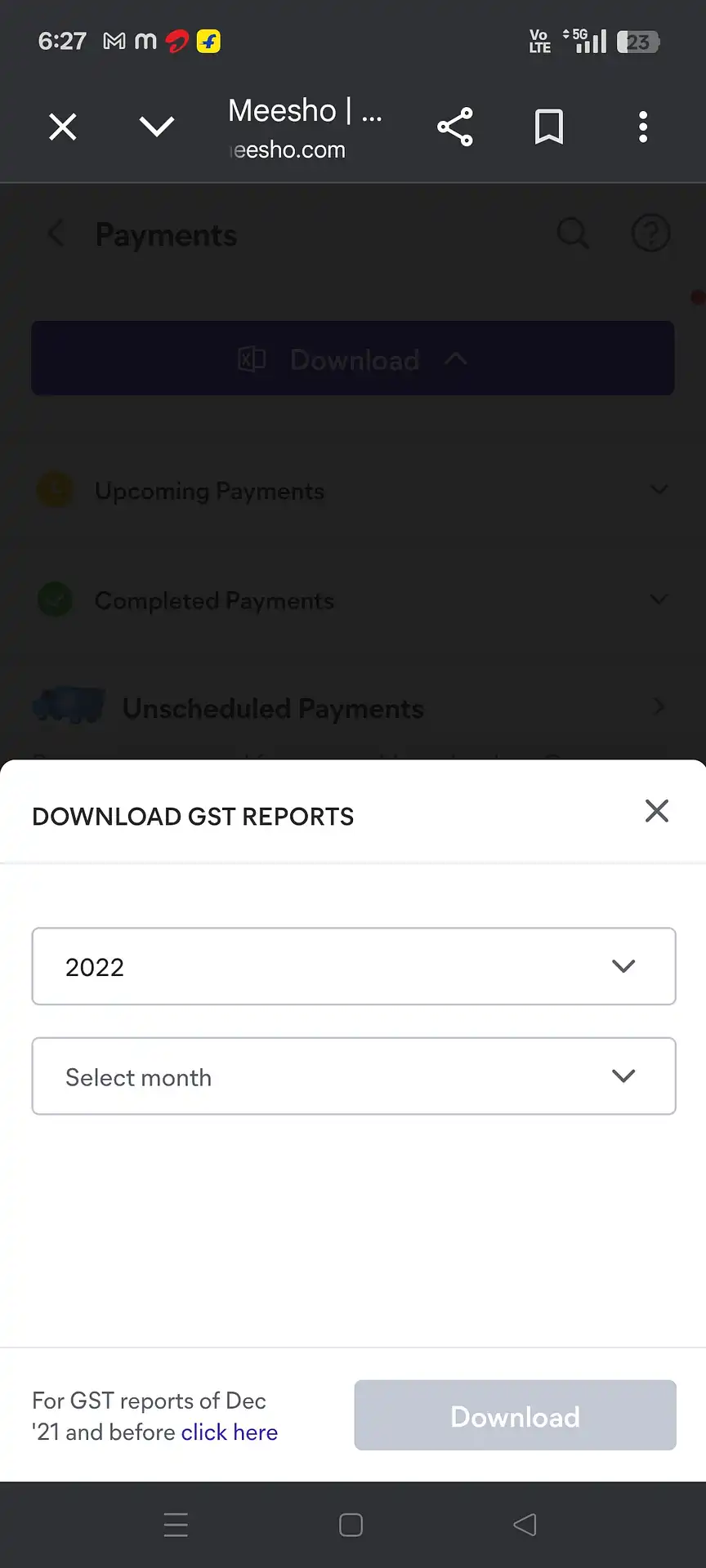
3. Step-by-Step: How to Download the GST Report
Follow these exact steps on supplier.meesho.com in a desktop browser.
4. Understanding the Two Files — TCS Sales vs TCS Return
This is where most Meesho sellers get confused during GSTR-1 filing.
When you download the Meesho GST report, you don't get one file — you get a ZIP containing two separate Excel files:
| File | What It Contains | Used For |
|---|---|---|
| TCS_Sales | All delivered orders — your gross sales for the month | B2C sales declaration in GSTR-1 |
| TCS_Return | All returned orders that were reversed during the month | Deduction from sales to arrive at net taxable value |
For GSTR-1, you need to net these two files — subtract the return amounts from the sales amounts to get the actual taxable value, tax collected, and so on. If you only upload the TCS_Sales file, you'll be over-declaring your turnover.
5. Data Gaps in Meesho's Report
Meesho's GST report is useful — but it has some real limitations.
Compared to Amazon's Merchant Tax Report, Meesho's GST report has noticeable data gaps that make GSTR-1 filing more challenging:
| Data Point | Available in Meesho GST Report? |
|---|---|
| Sale Amount (taxable value) | ✓ Available |
| GST Rate (tax %) | ✓ Available |
| State-wise breakup (IGST / CGST / SGST) | ✓ Available |
| HSN-wise summary | ✓ Available |
| Invoice Series (Start & End invoice number) | ✗ Not directly available |
| B2B buyer GSTIN details | ✗ Not available |
The biggest practical challenge is the missing Invoice Series. The GST portal requires you to enter the starting and ending invoice number for each document type in the "Document Summary" section. Meesho doesn't give you this directly — but there is a way to find it.
6. How to Find Your Invoice Series (The Shipping Label Method)
Meesho doesn't give you the invoice sequence — but your own shipping labels do.
Since Meesho's GST report doesn't include the invoice series (the start and end invoice number for the month), I had to find another way to get this data for the GST portal's Document Summary. After experimenting, I found that the most reliable source is your own shipping label PDFs — they're saved in your file manager and carry the actual invoice numbers Meesho assigns to each order.
Here's exactly how I do it every month. It takes about 5 minutes once you know the steps.
- 1 Open your phone's File Manager and navigate to the folder where Meesho label PDFs are saved (usually under Downloads → Meesho or a similar path).
- 2 Sort the labels by date. Find labels from the 1st of the filing month. Look at the invoice numbers in those labels — the smallest number from the 1st is your Start Invoice.
- 3 For the End Invoice, do not just check the 31st. Meesho often takes 2–3 days to generate the label after the order is placed, so orders placed on the 31st may appear in labels dated the 2nd–3rd of the next month.
- 4 Check labels up to the 5th–6th of the following month. Among all labels in this range, find those where the order date (not the label download date) falls within your filing month. The largest invoice number in this set is your End Invoice.
Why this works: Meesho's invoice number is embedded in the shipping label PDF filename or printed on the label itself. This data matches exactly what the GST portal expects for Document Summary — because it's the actual invoice number Meesho assigned to each order.
7. Common Mistakes to Avoid
These are the errors I see most often from Meesho sellers trying to file on their own.
- Downloading from the Meesho Supplier App. The file will be corrupt. Always use a computer browser.
- Downloading before the 6th of the month. The report may be incomplete or not yet available. Wait for the 7th–8th for a safe download.
- Using only the TCS_Sales file. You must also process TCS_Return and net the two. Filing without returns means over-declaring your turnover.
- Leaving the Document Summary blank on the GST portal. Fill it using the shipping label method — this section is important and auditable.
- Assuming the invoice series ends on the 31st. Always check labels up to the 5th–6th of the next month for the correct End Invoice.
- Manually adding up state-wise tax in Excel. Meesho data has multiple rows per state per tax rate — easy to miscount. Use a tool that handles this automatically.
8. What to Do After Downloading
The download is just the beginning — here's how to turn it into a filed return.
Once you have both the TCS_Sales and TCS_Return Excel files from Meesho, the next step is to combine them, net out the returns, split by state and GST rate, compile the HSN-wise summary, and fill it all into the GST portal. Doing this manually in Excel is both time-consuming and error-prone.
If you also sell on Amazon or Flipkart, you'll need to merge reports from all platforms before filing. A single GSTR-1 covers all your sales — there's no separate filing per platform.