1. Report कब Available होती है?
1 तारीख को login करके time बर्बाद मत करो — report वहाँ होगी नहीं।
मेरे खुद के Meesho seller होने के experience से — report महीने की 1 तारीख को available नहीं होती। यह आमतौर पर अगले महीने की 6 से 8 तारीख के बीच portal पर update होती है।
अगर आप बहुत जल्दी download करने की कोशिश करते हैं, तो ya तो empty file मिलेगी या incomplete data — जो बाद में reconciliation के वक्त और बड़ी problem बनती है।
अगर 6 या 7 तारीख को download करते वक्त "Empty Report" या "Data Not Found" error आए, तो घबराएं नहीं। यह तब होता है जब Meesho के servers अभी data process कर रहे होते हैं।
मेरे experience से, शाम को यह error आए तो बस अगले दिन सुबह try करें। Meesho की तरफ से एक official email आएगा जिसमें लिखा होगा कि report ready है। वो email आने के बाद बिना किसी problem के download होगी। Email आने से पहले बार-बार try करने का कोई फायदा नहीं!
2. Meesho App से Download क्यों नहीं करना ❌
यह सबसे common गलती है जो Meesho sellers करते हैं।
Meesho Supplier App में "Download" का option है और आप GST report tap करके download कर सकते हैं — लेकिन जो file मिलेगी वो लगभग हमेशा corrupt होगी। Excel में खुलेगी नहीं, और अगर खुली भी तो data garbled या unreadable होगा।
यह एक known issue है। App Android पर file को इस तरह download करता है कि Excel format preserve नहीं होता। बहुत से sellers 20-30 मिनट troubleshoot करते हैं — जबकि problem सिर्फ यह थी कि गलत जगह से download किया।
- Meesho Supplier App से GST report download मत करो। File corrupt होगी।
- Corrupt file को Excel के "Open and Repair" से ठीक करने की कोशिश मत करो — कोई फायदा नहीं होगा।
- Corrupt file अपने CA को email मत करो — वो भी उसे use नहीं कर पाएंगे।
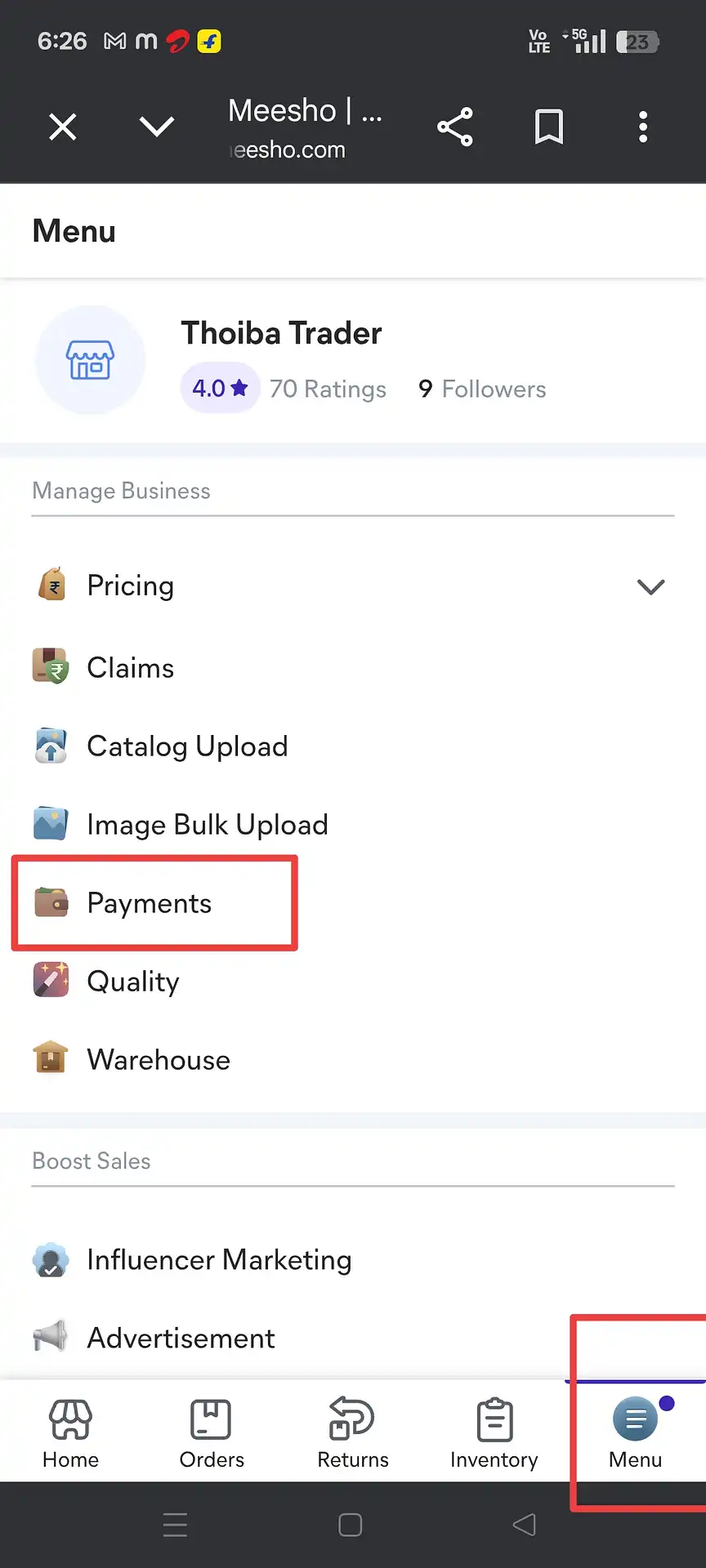
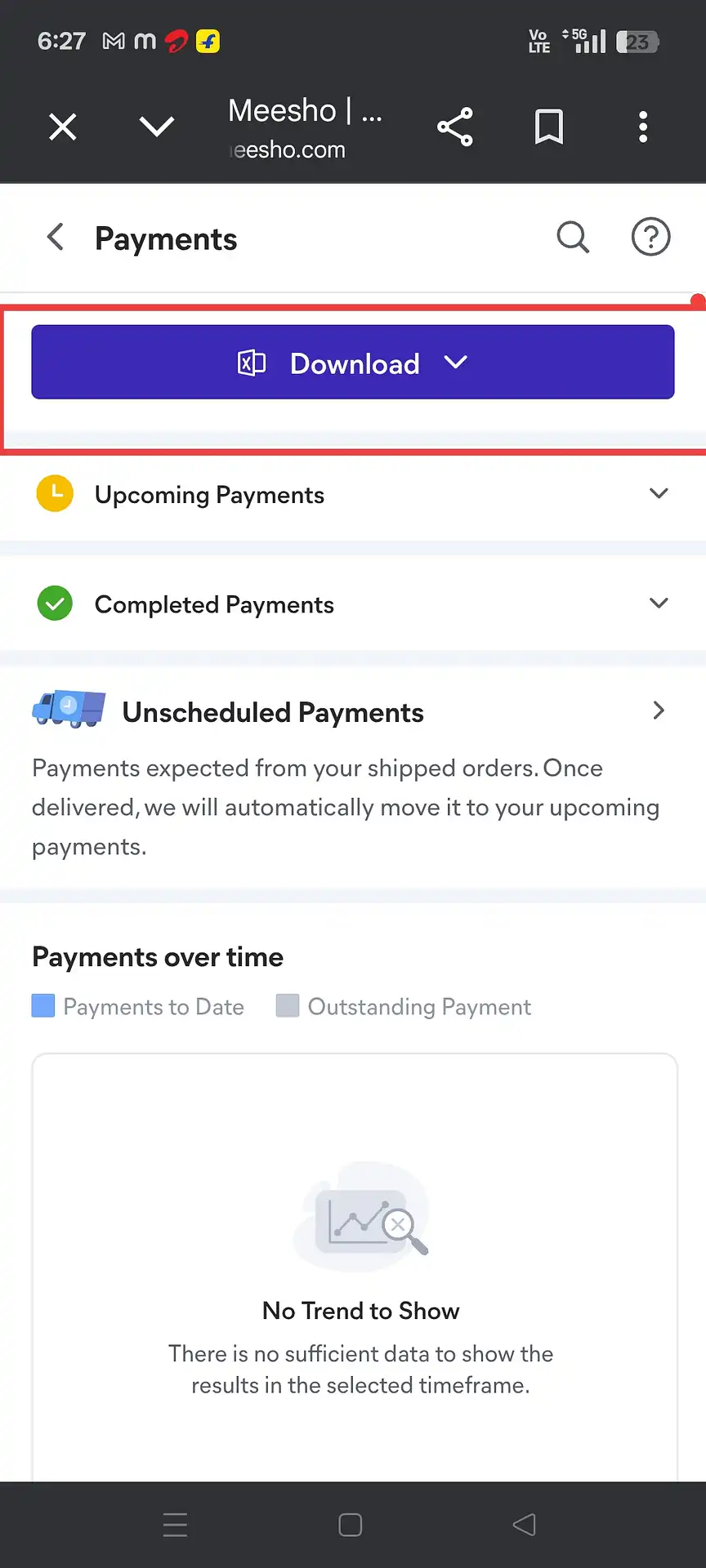
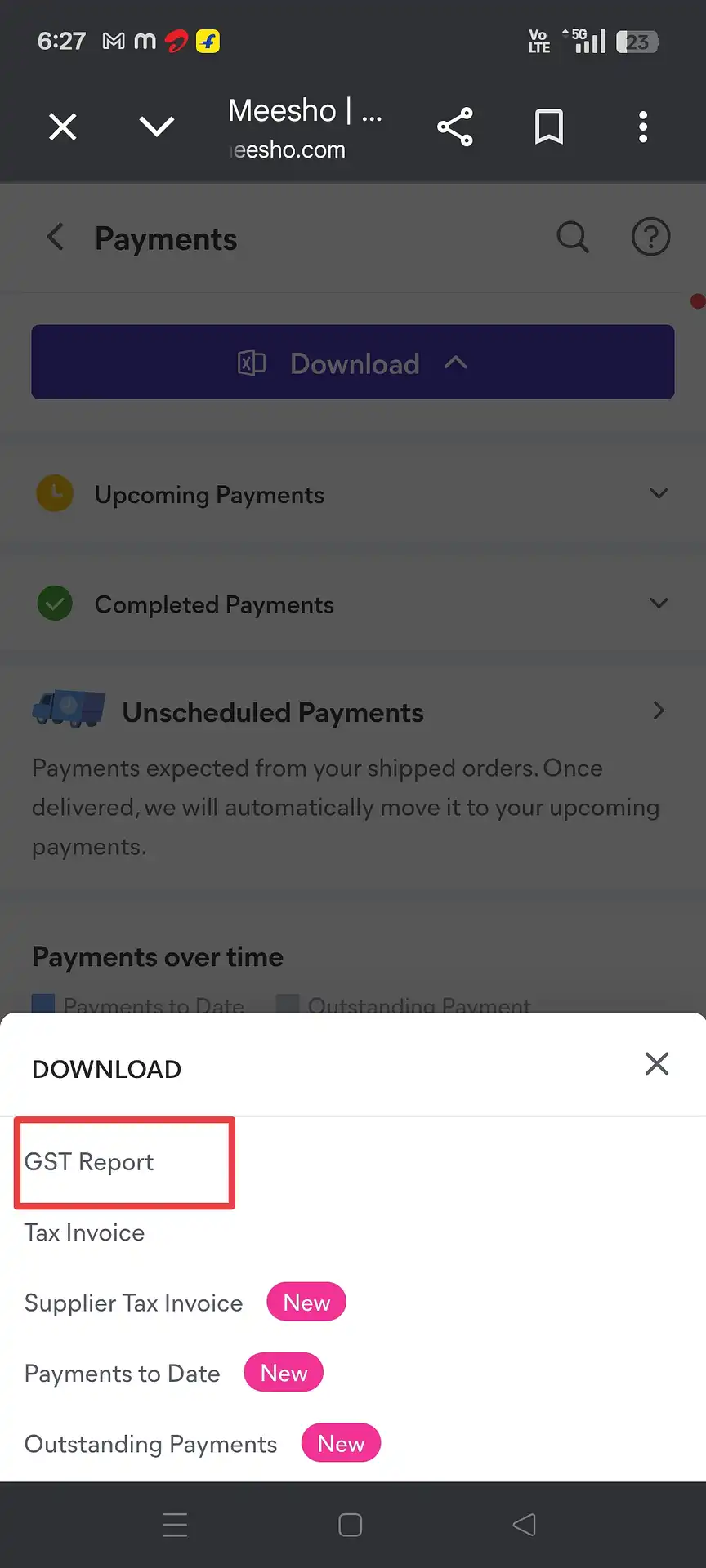
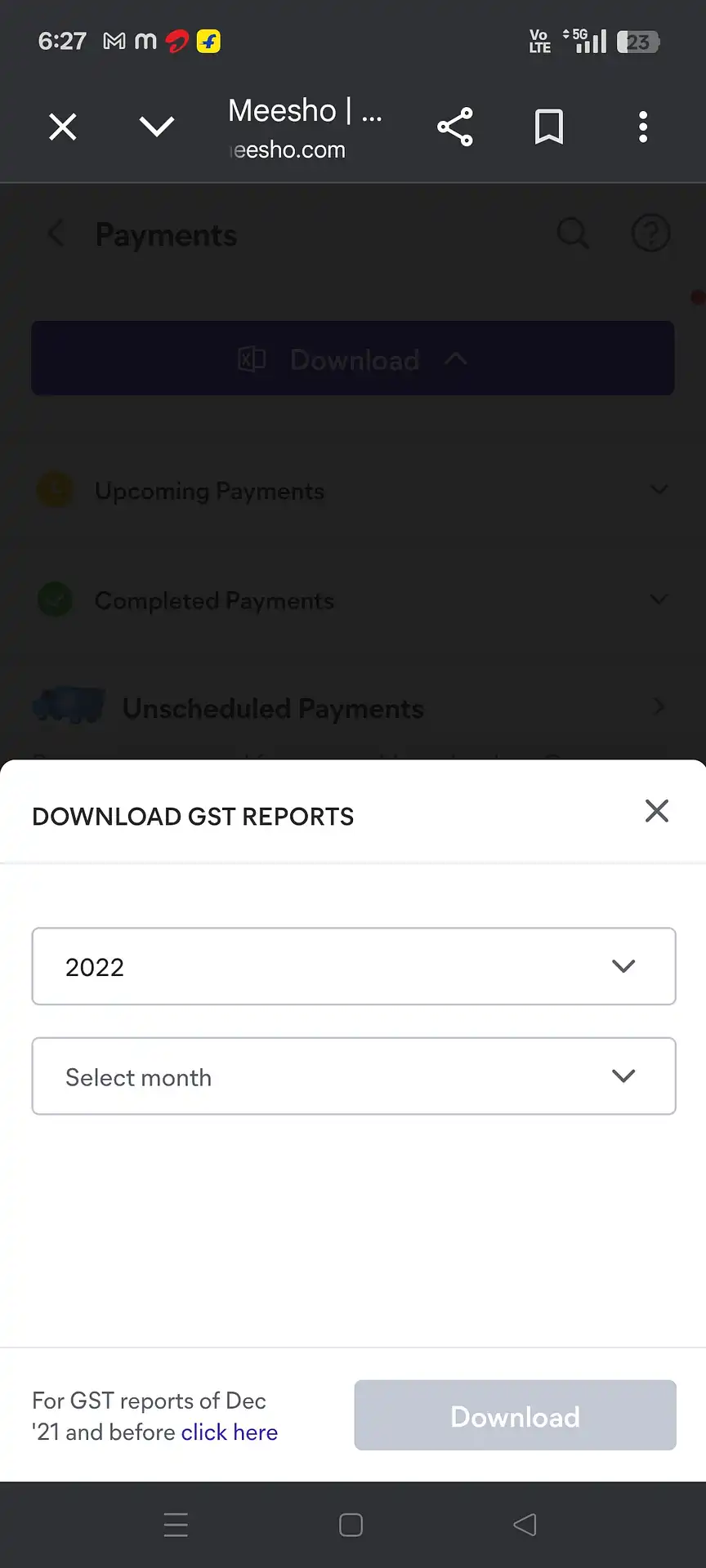
3. Step-by-Step: GST Report कैसे Download करें
Desktop browser में supplier.meesho.com पर इन exact steps को follow करें।
4. दो Files का मतलब — TCS Sales vs TCS Return
यहीं पर ज़्यादातर Meesho sellers GSTR-1 filing में confuse होते हैं।
Meesho GST report download करने पर एक नहीं, बल्कि एक ZIP file मिलती है जिसमें दो अलग Excel files होती हैं:
| File | इसमें क्या है | किसलिए use होती है |
|---|---|---|
| TCS_Sales | सभी delivered orders — महीने की gross sales | GSTR-1 में B2C sales declaration |
| TCS_Return | वो सभी returned orders जो उस महीने reverse हुए | Sales में से घटाकर net taxable value निकालने के लिए |
GSTR-1 के लिए इन दोनों files को net करना होता है — sales amounts में से return amounts घटाकर actual taxable value, tax collected आदि निकालनी होती है। अगर सिर्फ TCS_Sales file upload करोगे, तो आपका turnover over-declare हो जाएगा।
5. Meesho Report की Limitations
Meesho की GST report useful है — लेकिन इसमें कुछ real limitations हैं।
Amazon के Merchant Tax Report के मुकाबले Meesho की GST report में कुछ noticeable gaps हैं जो GSTR-1 filing को थोड़ा challenging बनाते हैं:
| Data Point | Meesho GST Report में Available है? |
|---|---|
| Sale Amount (taxable value) | ✓ Available |
| GST Rate (tax %) | ✓ Available |
| State-wise breakup (IGST / CGST / SGST) | ✓ Available |
| HSN-wise summary | ✓ Available |
| Invoice Series (Start & End invoice number) | ✗ Directly नहीं मिलता |
| B2B buyer GSTIN details | ✗ Available नहीं |
सबसे बड़ी practical challenge है Invoice Series का missing होना। GST portal पर "Document Summary" section में हर document type के लिए starting और ending invoice number enter करना होता है। Meesho यह directly नहीं देता — लेकिन इसे निकालने का एक तरीका है।
6. Invoice Series कैसे निकालें — Shipping Label Jugaad 🔧
Meesho invoice sequence directly नहीं देता — लेकिन आपके अपने shipping labels देते हैं।
चूँकि Meesho की GST report में invoice series (महीने का start और end invoice number) नहीं होती, मुझे GST portal के Document Summary के लिए यह data किसी और जगह से ढूंढना पड़ा। काफी experiment करने के बाद पता चला कि सबसे reliable source हैं आपके खुद के shipping label PDFs — जो file manager में save हैं और जिनमें Meesho का actual invoice number हर order के लिए होता है।
यहाँ exactly बताता हूँ कि मैं हर महीने यह कैसे करता हूँ। एक बार steps समझ लिए तो 5 मिनट में हो जाता है।
- 1 अपने phone का File Manager खोलो और वो folder navigate करो जहाँ Meesho के label PDFs save हैं (आमतौर पर Downloads → Meesho या कुछ ऐसे path पर)।
- 2 Labels को date से sort करो। Filing month की 1 तारीख के labels ढूंढो। उन labels में invoice numbers देखो — 1 तारीख का सबसे छोटा number आपका Start Invoice है।
- 3 End Invoice के लिए सिर्फ 31 तारीख मत देखो। Meesho अक्सर order place होने के 2-3 दिन बाद label generate करता है, इसलिए 31 को place हुए orders के labels 2 या 3 तारीख को बन सकते हैं।
- 4 अगले महीने की 5-6 तारीख तक के labels check करो। इस range में जो labels हैं उनमें से वो निकालो जिनकी order date filing month में पड़ती है। उनमें से सबसे बड़ा invoice number आपका End Invoice है।
यह काम क्यों करता है: Meesho का invoice number shipping label PDF के filename में या label पर print होता है। यह data exactly वही है जो GST portal Document Summary में expect करता है — क्योंकि यही actual invoice number है जो Meesho ने हर order को assign किया है।
7. ये गलतियाँ बिल्कुल मत करें ❌
ये वो errors हैं जो मैं सबसे ज़्यादा Meesho sellers में देखता हूँ जो खुद file करते हैं।
- Meesho Supplier App से download करना। File corrupt होगी। हमेशा computer browser use करो।
- महीने की 6 तारीख से पहले download करना। Report incomplete या unavailable हो सकती है। Safe download के लिए 7-8 तारीख का इंतज़ार करो।
- सिर्फ TCS_Sales file use करना। TCS_Return भी process करनी होगी और दोनों को net करना होगा। Returns के बिना filing मतलब turnover over-declare करना।
- GST portal पर Document Summary blank छोड़ना। Shipping Label Method से fill करो — यह section important है और auditable है।
- यह मानना कि invoice series 31 तारीख को खत्म होती है। End Invoice के लिए हमेशा अगले महीने की 5-6 तारीख तक के labels check करो।
- Excel में manually state-wise tax जोड़ना। Meesho data में हर state और tax rate के multiple rows होते हैं — गलती होना आसान है। ऐसा tool use करो जो यह automatically handle करे।
8. Download के बाद क्या करें
Download तो बस शुरुआत है — इसे filed return में कैसे बदलें।
Meesho की TCS_Sales और TCS_Return दोनों Excel files download हो जाएं, तो अगला कदम है — दोनों को combine करना, returns net करना, state और GST rate के हिसाब से split करना, HSN-wise summary compile करना, और सब GST portal में fill करना। Excel में manually यह करना बहुत time-consuming और error-prone है।
Amazon या Flipkart पर भी sell करते हैं, तो filing से पहले सभी platforms की reports merge करनी होंगी। एक GSTR-1 में सभी platforms की sales शामिल होती हैं — platform per अलग filing नहीं होती।