Download Your Flipkart P&L Report
To calculate your Flipkart store's true profit and loss, you need one specific file from Seller Hub. This guide shows you exactly where to go, what to tap, and which report to request — step by step.
📋 Download the Report in 5 Simple Steps
Open Flipkart Seller Hub in your browser or app and follow each step as shown in the screenshots.
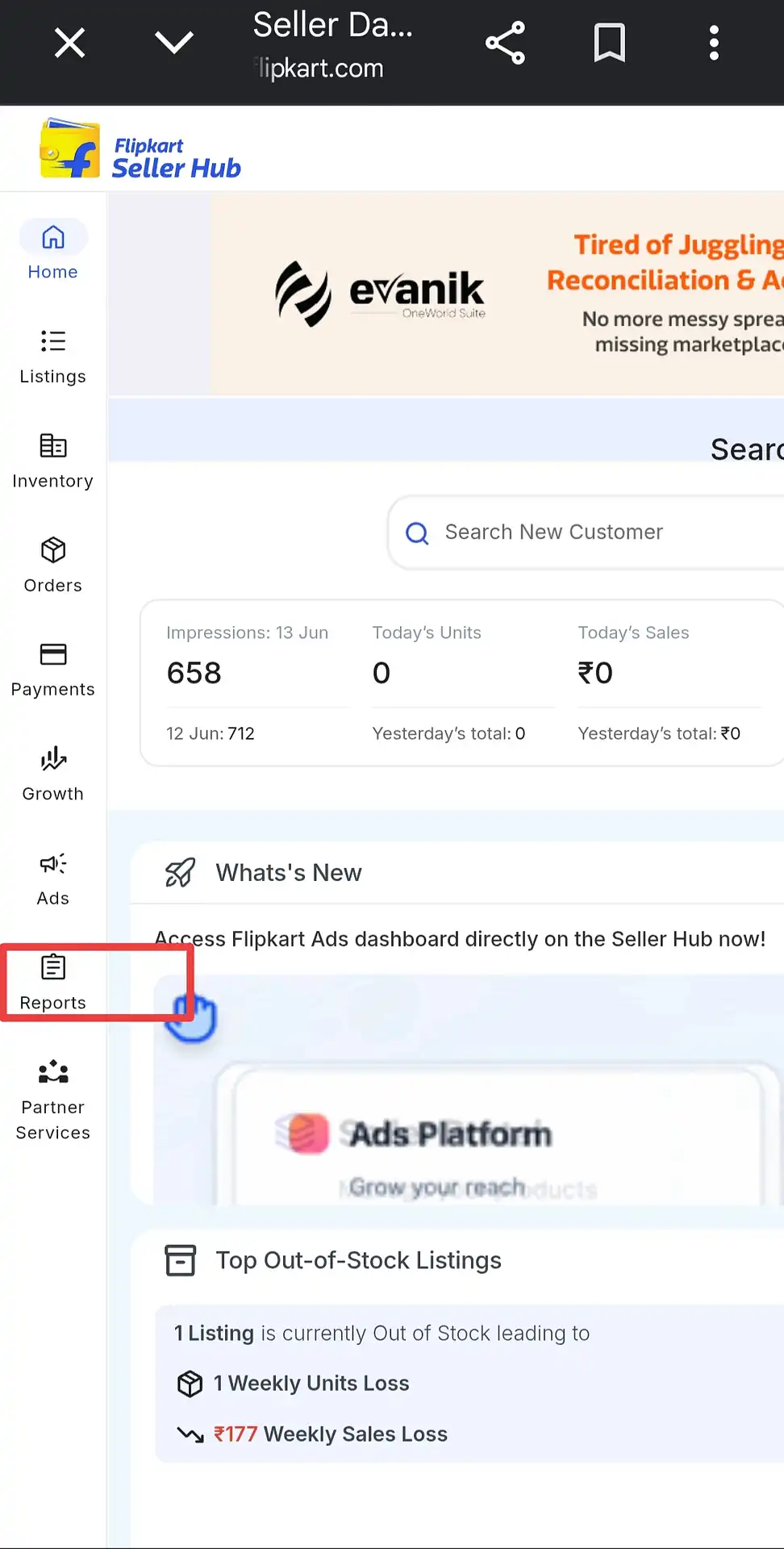
Open "Reports" from the Sidebar
Log in to Flipkart Seller Hub. In the left navigation sidebar, look for the Reports icon (it looks like a clipboard) and tap it.
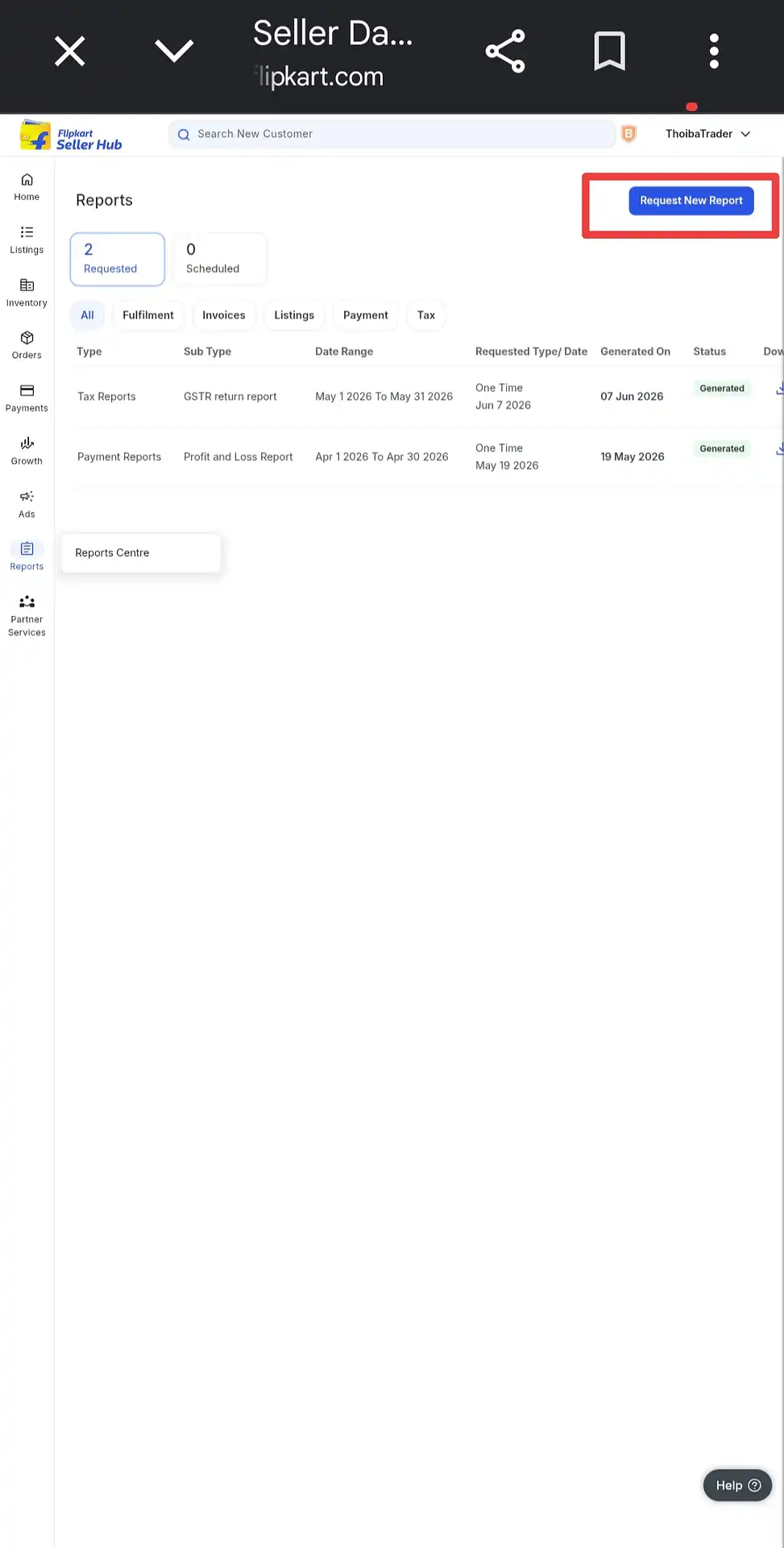
Click "Request New Report"
The Reports page opens and shows your previously generated reports. In the top-right corner, tap the blue "Request New Report" button to open the report request panel.
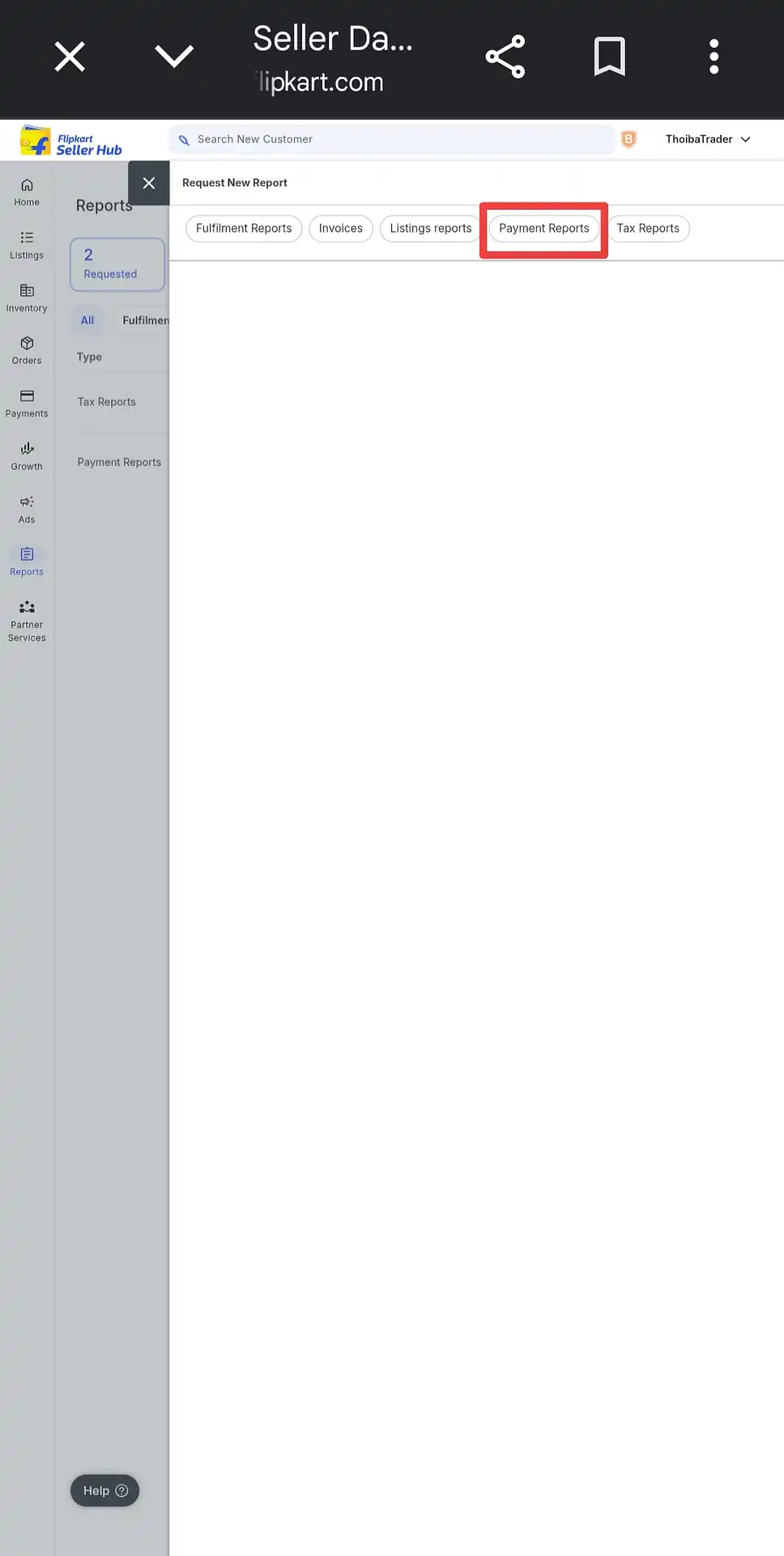
Select the "Payment Reports" Tab
A panel will slide open showing five report category tabs: Fulfilment Reports, Invoices, Listings Reports, Payment Reports, and Tax Reports. Tap on "Payment Reports".
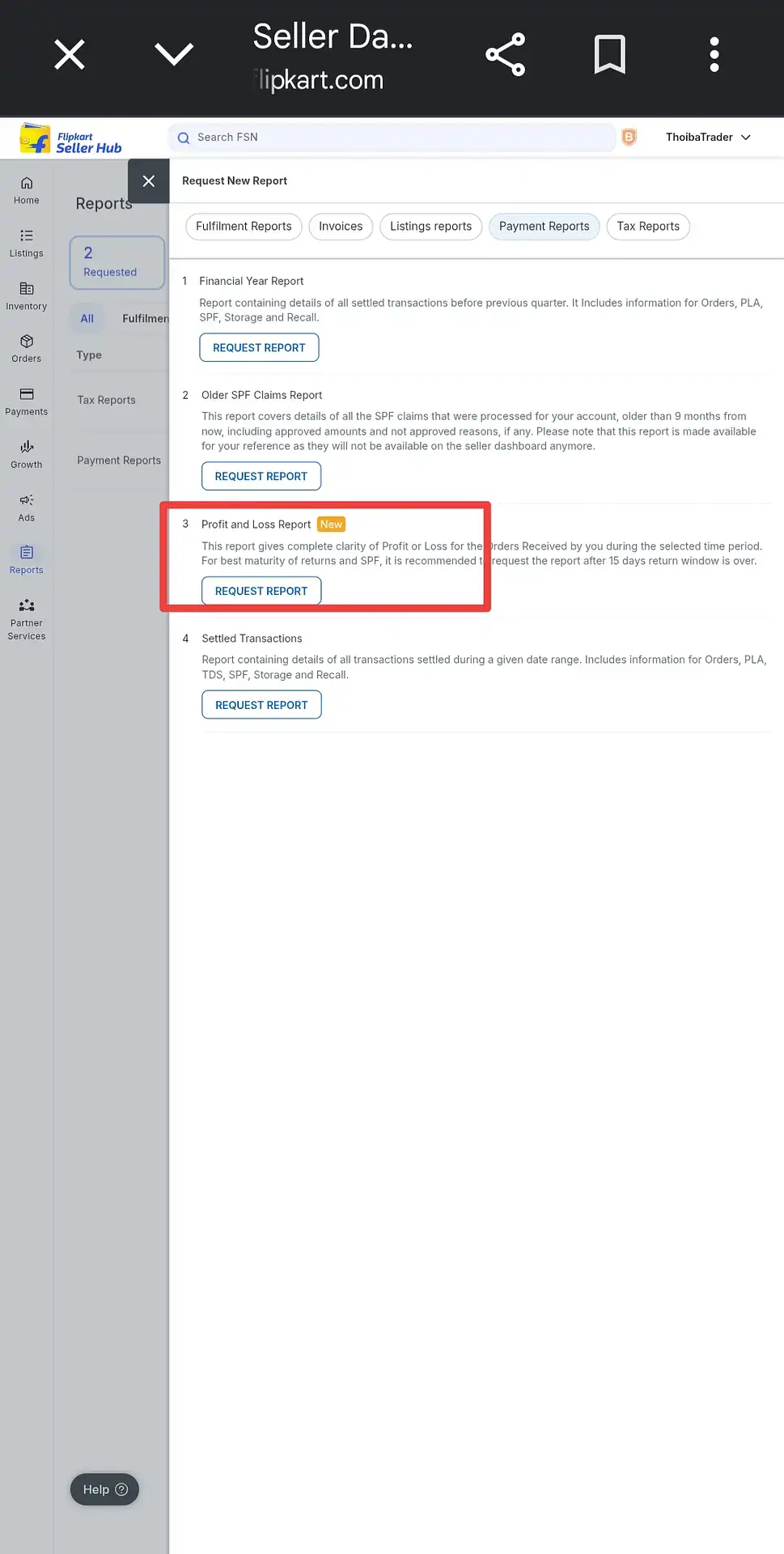
Request the "Profit and Loss Report"
Under Payment Reports, you will see four options: Financial Year Report, Older SPF Claims Report, Profit and Loss Report, and Settled Transactions. Tap "Request Report" under the Profit and Loss Report (marked "New" by Flipkart). This is the only report compatible with our calculator.
Set Date Range and Submit
Select "One Time Request". Tap the date picker and choose your From and To dates for the period you want to analyse. Then tap SUBMIT. Flipkart will process the report and it will appear in your Reports list with a "Generated" status — click the download icon to save the .xlsx file to your device.

What Does This Report Contain?
The Flipkart "Profit and Loss Report" is an Excel (.xlsx) file that provides a complete order-level breakdown of your earnings and deductions for the selected date range. Each row represents one order and includes the product name, FSN (Flipkart Serial Number), order status, selling price, Flipkart commission, shipping charges, collection fee, and the net settlement amount you receive.
This is the most detailed financial report available on Flipkart Seller Hub and is the only report that allows you to calculate true per-SKU profitability after all marketplace charges are deducted.
What Do the Order Statuses Mean?
- Delivered — The order was successfully delivered to the customer. You will receive the net settlement amount for this order.
- Returned / Return to Origin (RTO) — The order was returned or could not be delivered. You may still incur shipping and handling charges on these orders.
- Cancelled — The order was cancelled before dispatch. No revenue or fees apply.
What Does Our Calculator Do With This File?
Once you upload the Flipkart Profit and Loss Report, the calculator reads each order row, identifies delivered versus returned orders by SKU, and calculates your net settlement amount per product. After you enter your cost price (COGS) and packaging cost per SKU, it instantly shows you which products are profitable and which are generating losses — giving you a clear, actionable picture of your Flipkart business performance.
Why Wait 15 Days Before Downloading?
Flipkart itself recommends waiting until the 15-day return window has closed before requesting this report. This is because returns and SPF (Seller Protection Fund) claims can still be processed during that window — downloading the report too early means some orders may still show as "in transit" or pending settlement, making your P&L figures incomplete.
Why Is the File in .xlsx Format?
Flipkart generates the Profit and Loss Report as an Excel (.xlsx) file. Our calculator accepts this file directly — do not convert it to CSV or any other format before uploading. Upload the file exactly as downloaded from Seller Hub.
Frequently Asked Questions
Generation time varies but is usually quick — often within a few minutes. Refresh the Reports page and check the status column. Once it shows "Generated" with a green label, the download icon will appear. Click it to save the file.
No. The Settled Transactions report has a different column structure and does not contain the SKU-level profitability data our calculator requires. You need to request the Profit and Loss Report specifically from the Payment Reports section.
Select a complete calendar month that ended at least 15 days ago — for example, if today is June 15, request the report for April 1 to April 30. This ensures the 15-day return window has closed for all orders in that period and the figures in the report are final.
Yes, you can select a wider date range spanning multiple months. However, for clearer month-by-month insights into your business performance, we recommend requesting separate reports for each month. You can also use the "Schedule Report" option on the same screen to automatically generate this report on a recurring basis.
Not at all. The file is read entirely within your browser using local processing — it is never transmitted to or stored on any external server. Your Flipkart financial data stays on your device throughout the entire calculation.
Absolutely. Upload your Flipkart .xlsx, your Amazon .csv, and your Meesho .xlsx files all at once. The calculator produces both a combined P&L summary across all three platforms and individual breakdowns for each channel — giving you a complete picture of your multi-platform business in one report.
If you have the Flipkart Seller Hub app installed on your phone, we strongly recommend temporarily uninstalling it before following this guide. When the app is installed, any browser link to seller.flipkart.com will automatically redirect to the app — where the Reports section has limited or no download functionality.
After uninstalling the app, open Chrome (or any mobile browser), enable Desktop Site mode, and visit seller.flipkart.com. This gives you the full Seller Hub interface — exactly as it appears on a desktop — and you'll be able to request and download the Profit and Loss Report without any issues.